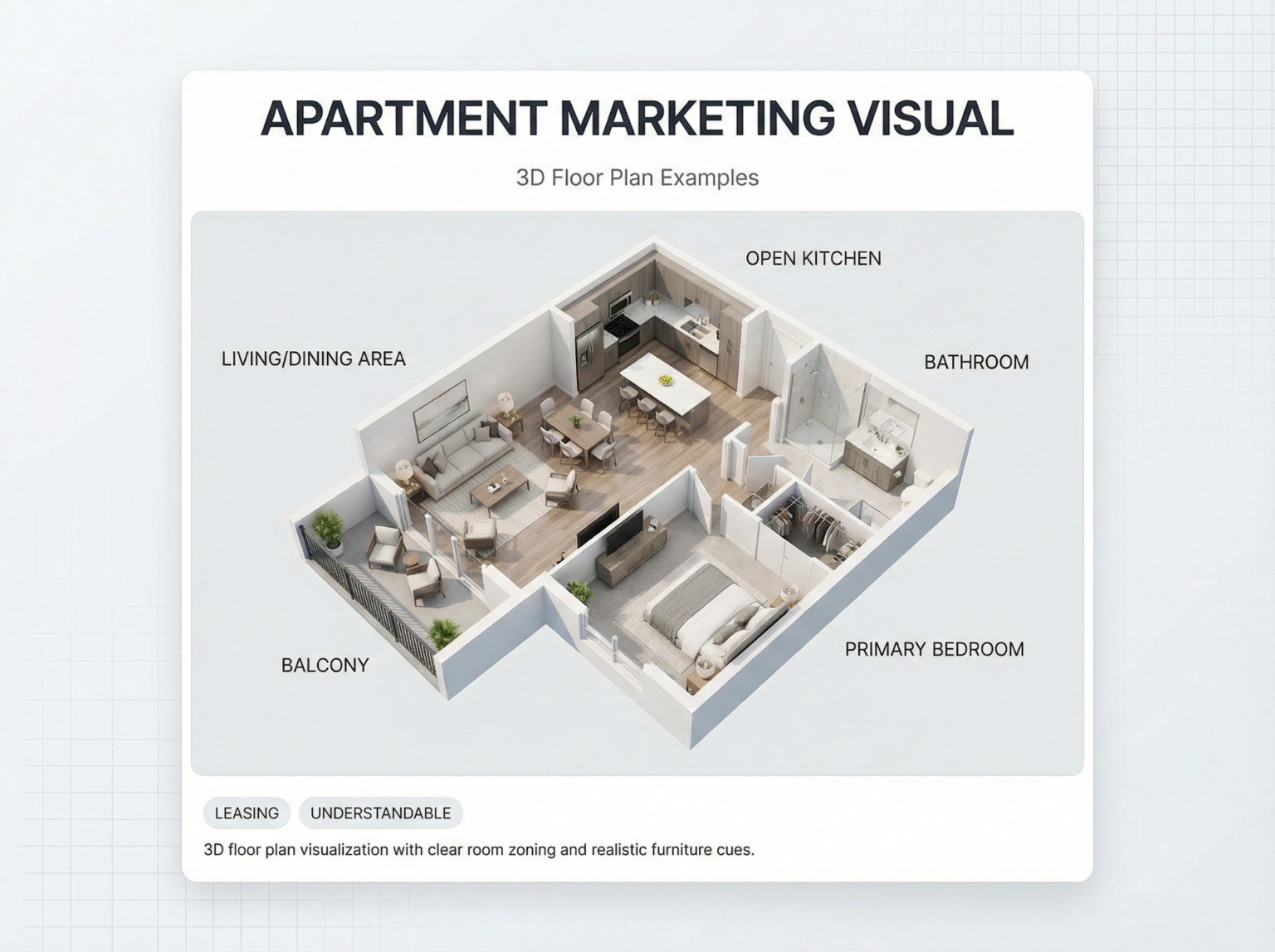
No matter if you’re trying to create a floor plan for a small apartment or just tweak your space layout a bit, it somehow always ends up feeling overwhelming. The living room is either too cramped or awkwardly empty, the kitchen placement never quite makes sense, and the overall flow just feels… off in a way you can’t really explain. And honestly, that’s the most frustrating part—you can tell something’s wrong, but you can’t quite put your finger on it.
I stumbled across an AI floor plan generator by accident, and it honestly blew me away. I had to come on here and share my experience.
The Real Problem: It’s Not About Drawing — It’s About Thinking in Space
The hardest part has never really been the drawing — it’s the thinking. A lot of people assume creating a floor plan is difficult mainly because they don’t know how to draw it. But that’s not actually the case.
Even for professional interior designers, the real challenge is:
- Visualizing how spaces connect
- Figuring out proportions
- Understanding what actually “feels right”
And traditional tools don’t really help with that.
If you’ve ever opened AutoCAD or SketchUp, you’ll probably know what I mean. They’re powerful, no doubt — but they assume you already know what you’re doing.
Otherwise, you just end up staring at a blank canvas thinking:



| “Wait… how big should a bedroom actually be?” |
That’s Where AI Floor Plan Generators Start to Make Sense
Instead of starting from nothing, you start with an idea.
Something like:
| “2-bedroom apartment with open kitchen and lots of natural light” |
And the AI turns that into an actual layout.
I tried AIAI’s floor plan generator out of curiosity at the time—I didn’t have high expectations at first—but it really removed that “blank canvas panic.”
Based on the ideas the AI gave me, I could tweak and adjust things, gradually shaping it into the kind of floor plan I actually had in mind.
Getting Started: It’s More Structured Than I Expected
When I first opened the AIAI floor plan editor, I realized it’s not exactly the “type a sentence and get a house” kind of tool I initially imagined.
Instead, the whole setup is actually quite structured.
On the left side, you’re working with a parameter panel rather than a chat box or blank canvas.
You start by defining the basics, such as:
- Total area (for example, 120 sqm)
- Number of floors
- Number of bedrooms, living rooms, and bathrooms
- A short layout requirement description
There’s even an example already filled in:
| “Open plan living area, master bedroom with en-suite.” |
So it feels less like free-form prompting and more like you’re gradually defining design constraints.
A Surprisingly Detailed Input System
What stood out is how many practical options are included in the setup.
Below the basic structure, you can refine things like:
- Kitchen type (Open, Closed, Island)
- Garage options (None, 1 Car, 2 Cars)
- Design style (Modern, etc.)
- CAD style (Blueprint, Clean Line, Technical)
- 2D or 3D view selection
At first glance, it looks like a lot of settings. But after using it for a bit, it starts to feel more like you’re translating vague ideas into something the system can actually work with.
Instead of just saying “I want a nice house,” you’re gradually shaping what “nice” means in practical terms.
Generation: More Like Exploring Options Than Getting One Answer
Once everything is set, you click “Generate plan” (it even shows credit usage, like 12 credits per generation).
Then the system produces a full floor plan on the right side.
What I didn’t expect is that it doesn’t just give you one result. You can browse through sample layouts and compare different versions.
Each one represents a slightly different interpretation of the same requirements.
From the sample shown, the layouts already look like complete residential designs:
- Open living and dining areas
- A master bedroom with ensuite
- Multiple secondary bedrooms
- A home office and utility spaces
- Outdoor areas like a garden or balcony
It’s not a sketch or rough concept — it already looks like something that could realistically be built or handed to a contractor.
Editing Feel: Structured, Not Fully Freeform
One thing that becomes clear pretty quickly is that this isn’t a free drawing tool.
You’re not starting from zero and placing walls manually.
Instead, the system gives you a structured layout first, based on the inputs you provided, and then you adjust within that framework.
So the workflow is more like:
- Define requirements
- Generate structured layouts
- Refine or regenerate variations
rather than building everything step by step from scratch.
A More Practical Way to Think About It
After using it for a while, I felt like the real value is not in “designing a perfect house from scratch,” but in speeding up the early stage of thinking.
It’s especially useful if:
- You have a rough idea but don’t know how it translates into space
- You want to quickly explore how different constraints affect layout
- You don’t want to start directly in professional tools like CAD
It helps turn vague ideas into something visual and structured enough to react to.
And sometimes, that’s the part that takes the longest in real projects.