Your operating system depends on proper drivers to ensure hardware like GPUs, network devices, and printers work correctly. Your PC may experience slow performance, freezes, or system errors if drivers aren’t kept up to date. Driver Booster keeps drivers up to date automatically, improving stability, accelerating performance, reducing errors, and delivering smoother gaming, work, and overall computer performance.
What is Driver Booster 13?
Driver Booster 13 from IObit is the newest driver update software, designed to simplify PC driver management. It quickly scans for and updates any outdated, missing, or faulty drivers, keeping key hardware—such as graphics cards, audio devices, and network adapters—running efficiently. Manual driver updates are time-consuming and may cause crashes or hardware issues if the wrong driver is installed. It safely updates drivers by checking them, downloading certified versions from reliable sources, and backing up existing drivers beforehand. Perfect for both casual users and tech enthusiasts, it boosts PC performance, reliability, and safety.
Key Features of Driver Booster 13
- Automatic Driver Updates – Keeps all hardware up-to-date—graphics cards, peripherals, and more—for smooth software and gaming.
- One-Click Fix – Quickly fix drivers for smooth and dependable PC performance.
- Game Ready Drivers – Keep important game drivers up-to-date for smooth, responsive play.
- Backup & Restore – Creates driver backups prior to updates, letting you restore safely.
- Offline Driver Update –Update drivers quickly, even offline.
- Scheduled Scans – Keep your system fast with automatic scans.
- Enhanced Security – Microsoft-certified drivers deliver safe, smooth, and worry-free updates.
- System Boost Tools – Perform smooth PC operation by resolving device and network problems.
Step-by-Step Guide to Fix Errors and Boost Speed Using Driver Booster 13
Driver Booster simplifies driver fixes and performance boosts. Get started with these steps:
Step 1: Download and Install Driver Booster
Visit the official Driver Booster to download the latest version. Go through the simple setup to finalize the installation.
Step 2: Launch the Program
Launch Driver Booster after installation, and it will automatically scan your system for outdated or missing drivers.

Step 3: Review Scan Results
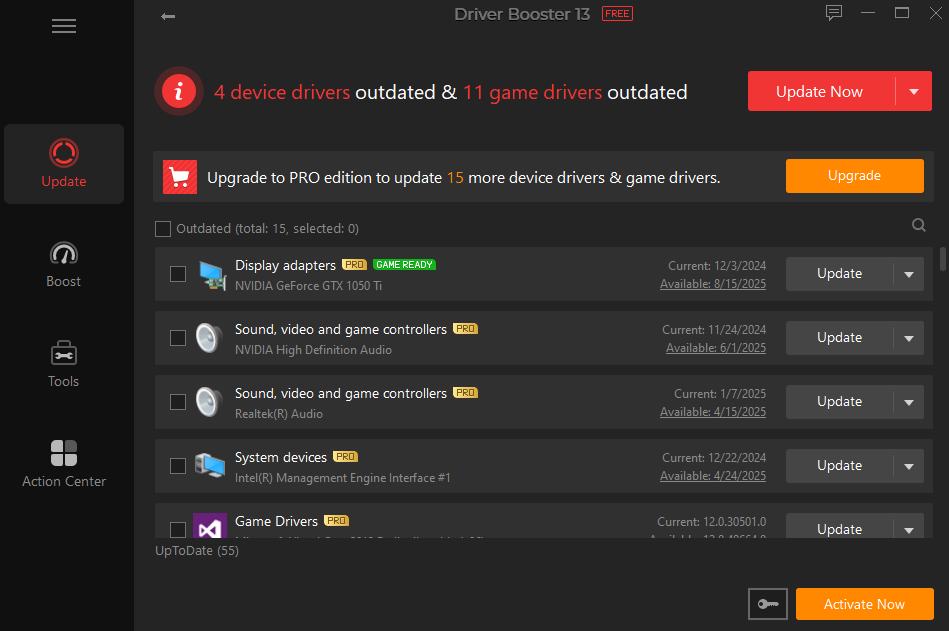
After the scan completes, Driver Booster shows a categorized list of drivers that need updates. Drivers vital for smooth system operation and gaming are emphasized for quick attention.
Step 4: Backup Your Drivers
Click Backup before updating to safeguard your drivers and restore them easily if needed so you can recover without any trouble.
Step 5: Update Drivers
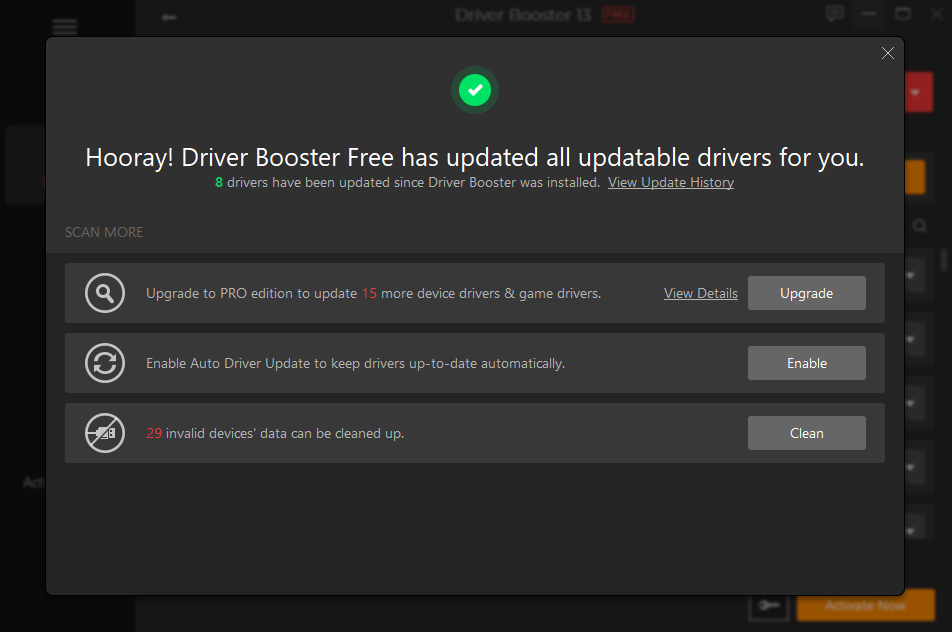
Click Update Now to instantly update all drivers. Every driver is WHQL-certified and sourced from trusted providers, guaranteeing a safe and hassle-free installation.
Step 6: Restart Your PC
Reboot your system post-update to enable changes and enjoy faster, smoother, and more dependable performance.
Step 7: Optimize for Gaming (Optional)
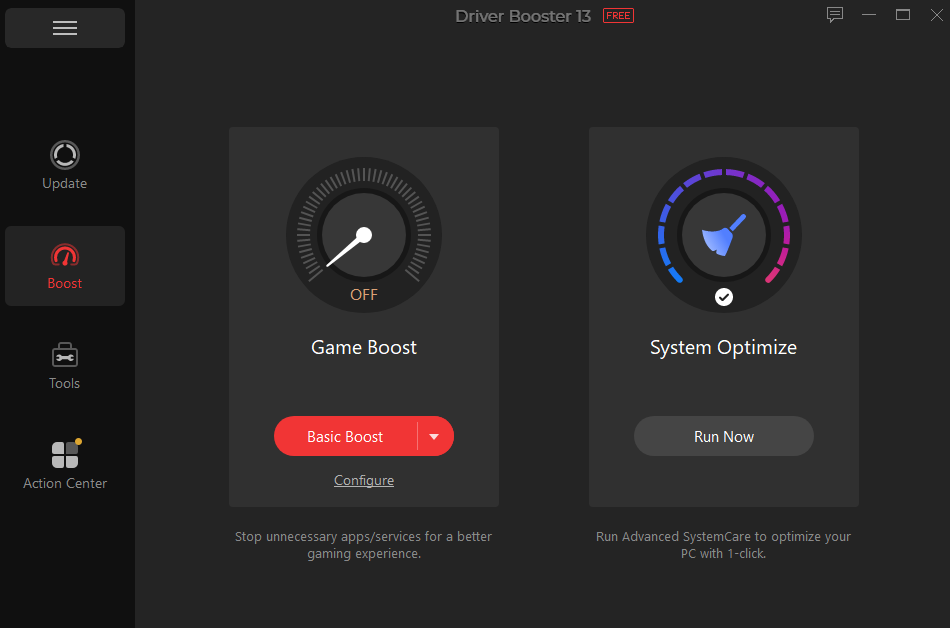
For gamers, the Game Boost temporarily stops unnecessary background processes, freeing up CPU and RAM for gaming to enjoy faster FPS, seamless gameplay, and minimal lag during heavy gaming sessions.
Additional Tips to Fix Errors and Boost Speed
Although Driver Booster handles the majority of driver updates, integrating it with other system optimizations can maximize performance.
- Regular System Maintenance
Free up storage and improve performance by cleaning disks, defragmenting, and deleting unnecessary temp files.
- Keep Windows Updated
Ensure your operating system receives the latest updates. Many hardware drivers depend on recent Windows patches for compatibility and stability.
- Monitor Startup Programs
Launching several programs at startup can affect boot times. Turn off unnecessary apps in Task Manager to speed up your PC.
- Check for Malware
Viruses or malware may affect driver performance and overall system stability. Keep your PC secure by running routine antivirus scans.
- Upgrade Hardware
Driver updates alone may fall short in resolving performance problems. Upgrading hardware components can enhance speed, multitasking, and gameplay.
- Enable Game Mode
Use Game Mode and Game Boost together to enhance system efficiency, lower background activity, and achieve faster, smoother gaming.
- Use Offline Driver Installation
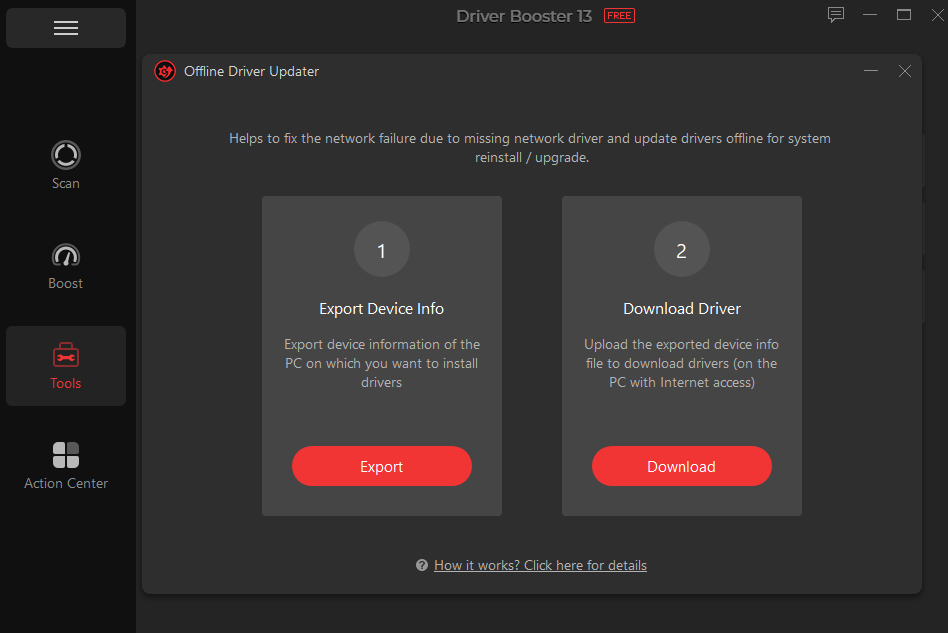
Without reliable internet, get drivers on a different computer and apply them with Driver Booster’s Offline Update feature. This allows you to keep drivers updated in restricted or offline settings.
8.Regular Backups
Always create a driver backup before updating. Even though Driver Booster does this automatically, manual backups add extra protection for critical systems.
- Monitor Device Health
Driver Booster provides information about driver versions and device status. Keeping a consistent check on this data enables early detection of hardware problems and ensures system reliability.
- Combine with Other Optimization Tools
For the best system performance, use Driver Booster alongside tools such as disk cleaners, RAM optimizers, and repair utilities. Employing these tools side by side helps your PC achieve peak performance in both hardware and software.
Conclusion
For a fast and error-free PC, Driver Booster 13 is a must. Featuring automated scans, single-click updates, game-oriented boosts, and reliable backups, it serves as a full all-in-one solution. Staying on top of driver updates ensures smooth, reliable performance for gaming, work, or daily use.
When combined with regular system maintenance, malware protection, hardware upgrades, and Windows updates, Driver Booster ensures that your PC operates smoothly, free from errors, crashes, and performance bottlenecks. For a reliable, hassle-free solution to driver issues, get Driver Booster and keep your PC running smoothly.
FAQs
Q1. How does Driver Booster handle game performance?
Driver Booster improves gaming by maintaining current GPU, sound, and network drivers, delivering stable and seamless performance. By shutting down unneeded background tasks, Game Boost frees up CPU, RAM, and GPU, and Windows Game Mode ensures resources focus on games. It provides smooth gameplay, improved FPS, and reduced lag, while built-in backups protect your drivers during updates.
Q2. How can I update drivers safely without a tool like Driver Booster?
To update drivers securely, first determine your hardware and take note of the current driver versions. Download drivers only from official manufacturer websites. Before installation, back up your current drivers or create a system restore point. Install each driver individually, reboot your PC, and confirm system stability after each update to ensure everything functions properly.