

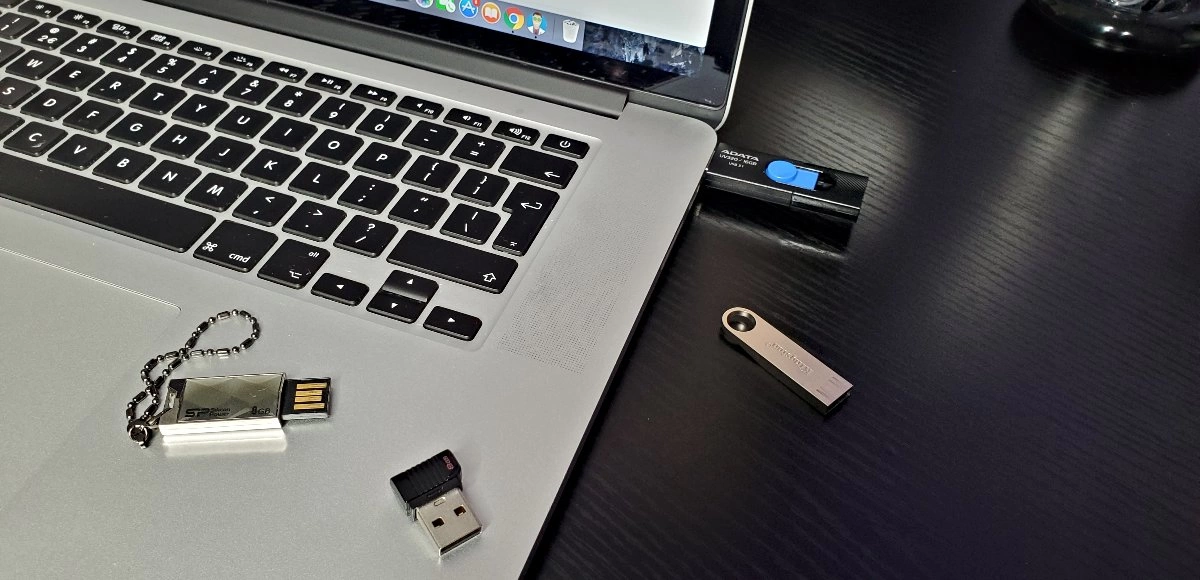
Losing an important file can ruin a normal day very quickly. It might be a client invoice on a USB stick, a folder of holiday photos on an SD card, or a work archive on an external hard drive that suddenly refuses to open. At first, it feels as if the file has gone forever. In many cases, though, you can still recover lost files if you act quickly and avoid making the damage worse.
When Windows deletes a file or a device becomes unreadable, the original data does not always disappear immediately. Often, the system simply marks that space as available. Until new data overwrites it, recovery may still be possible.
This guide explains how to handle common file loss on USB drives, SD cards, and hard drives, and how PandaOffice Drecov can help Windows users recover lost files without advanced technical skills.
Why Files Go Missing
Most data loss starts with ordinary mistakes. A user presses Shift + Delete, empties the Recycle Bin, formats the wrong drive, pulls out a USB device too early, or removes an SD card while a camera is still saving photos. None of these mistakes feel serious at the time, but each one can make files disappear.
Technical problems can cause the same result. A Windows crash, failed update, virus infection, RAW drive error, corrupted partition, or bad sector can make folders unreadable even when the data still exists.
Whatever the cause, stop using the affected device. Do not copy new files onto it. Do not format it again. Do not install recovery software on the same drive where the files disappeared. Every new write operation can reduce your chance to recover lost files.
USB Drive Recovery: Start with the Safest Checks
USB drives are convenient, but they fail more often than many people expect. A sudden disconnect or a small file system error can leave the drive asking to be formatted.
For USB drive recovery, begin with simple checks. Try another USB port. Test the drive on another computer. If possible, avoid cheap USB hubs and loose extension cables. If the drive still shows errors, do not click Format just because Windows suggests it.



Instead, scan the drive with a read-only recovery tool. PandaOffice Drecov supports USB data recovery and can search for deleted, formatted, or inaccessible files. Quick Scan helps with recent deletion, while Deep Scan can look deeper when the drive structure is damaged.
Before restoring data, preview the files to confirm that the recovered document, photo, video, or archive is usable.
SD Card Recovery for Photos and Videos
SD cards often hold files people cannot recreate: camera photos, drone clips, event footage, product shots, and travel videos. One “Card Error” message can put an entire shoot at risk.
If your camera, phone, or laptop cannot read the card, stop using it immediately. Do not take more photos. Do not record new videos. Do not format the card in the camera. New media can overwrite the files you want back.
Connect the card to a Windows computer with a reliable card reader. If the card appears but will not open, recovery software may still find the lost data. PandaOffice Drecov supports SD Card recovery and memory card recovery, including photos, videos, and audio files.
Use file filters during the scan. Looking only for JPG, PNG, RAW, MP4, MOV, or similar formats can save time. When you recover the files, save them to the computer or another external drive, not back to the same SD card.
Hard Drive Recovery for Business and Personal Files
Hard drives still store a huge amount of real work. Many people keep documents, invoices, project files, photos, and archives on internal or external drives. When a drive becomes slow, unreadable, or suddenly empty, hard drive recovery becomes urgent.
Start with the basics. For an external drive, check the cable, USB port, and power supply. If the drive appears in Windows Disk Management but will not open, resist the urge to format it. Formatting may make the drive look usable again, but it can also make recovery harder.
PandaOffice Drecov supports hard drive recovery for HDDs, SSDs, external hard drives, and computer partitions. It can help with accidental deletion, formatting, lost partitions, RAW drives, virus attacks, and system crashes. Its read-only scan searches for files without changing the original device.
One warning matters: if a hard drive clicks, disconnects repeatedly, or shows signs of physical damage, stop using it. Software can help with many logical issues, but physical damage may need professional recovery service.
How PandaOffice Drecov Helps You Recover Lost Files
PandaOffice Drecov is designed for Windows users who need a straightforward way to recover lost files from common storage devices. According to the official website, it supports recovery from PCs, USB drives, SD cards, HDDs, SSDs, memory cards, and external hard drives, as well as documents, photos, videos, emails, archives, and audio files.
The process is simple. Choose the original location, start a scan, preview the results, and recover the files you need. Quick Scan works well for recent deletion. Deep Scan is better for formatted drives, lost partitions, RAW drives, virus attacks, and more complex cases.
The preview feature is especially useful. Instead of restoring hundreds of unknown files, you can check what you have found first. Pause and resume scans also help when a large drive takes longer to scan.
Most importantly, the software follows a safe read-only recovery process. It does not overwrite the original device during scanning, which helps protect the remaining data while you work through recovery.
A Simple Recovery Workflow
First, stop using the device where the files disappeared. This applies to USB drives, SD cards, hard drives, SSDs, and external drives.
Second, check easy locations. Look in the Recycle Bin, cloud folders, email attachments, recent file lists, and backup drives. Sometimes the file is simply stored somewhere unexpected.
Third, connect the affected device to a stable Windows computer. Use a reliable cable or card reader, and avoid unstable hubs.
Fourth, open PandaOffice Drecov and select the original storage location. Start with Quick Scan. If it does not find the files, run Deep Scan.
Fifth, preview the results and filter by file type, size, or date. This makes it easier to find the right document, photo, video, email, or archive.
Finally, save recovered files to a different drive. Never save them back to the same USB drive, SD card, or hard drive you are scanning. Doing so may overwrite other recoverable data.
How to Avoid the Same Problem Later
Recovery software helps after trouble starts, but better habits reduce the risk. Keep at least two copies of important files. For business files, use cloud storage plus an external backup. For photos and videos, copy SD card content to a computer before formatting the card. Treat USB drives as transfer tools, not long-term storage.
Also, eject removable devices safely. Pulling out a drive during a write operation can corrupt the file system. Keep antivirus software updated, avoid unknown downloads, and replace ageing drives before they fail without warning.
Final Thoughts
Data loss feels final, but it often leaves a short recovery window. The key is to stay calm, stop using the affected device, and scan it before new data overwrites the missing files. Whether you need USB drive recovery, SD card recovery, or hard drive recovery, a careful workflow can make a real difference.
PandaOffice Drecov gives everyday users, creators, students, and small businesses a practical way to recover lost files from common storage devices. It does not replace good backups, but it can be a valuable safety net when backups are missing, outdated, or incomplete.