

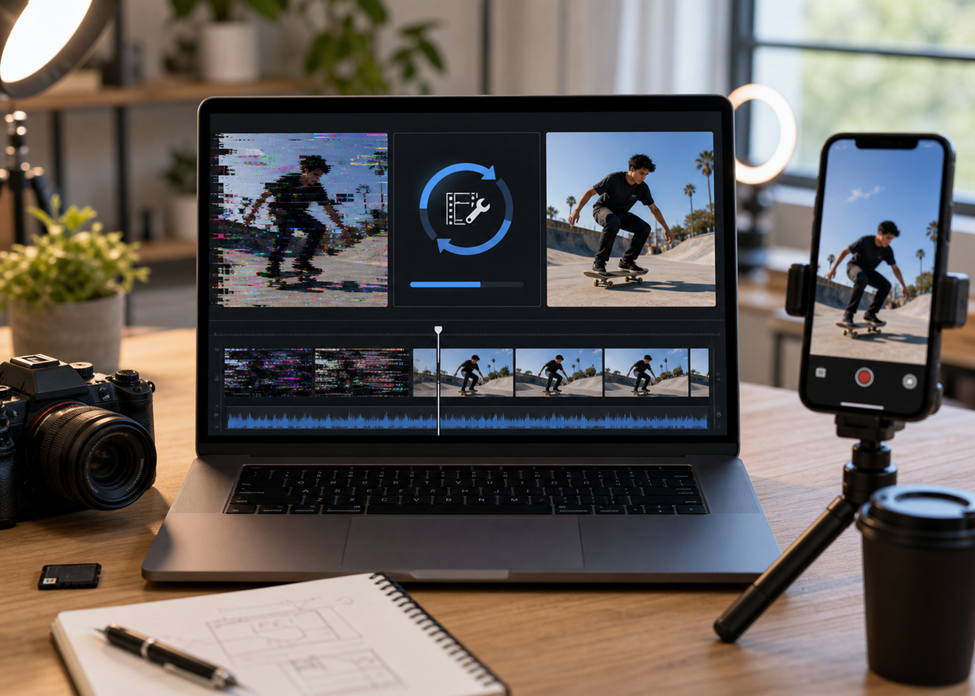
Short-form creators work on tight publishing cycles. One damaged MP4 can hold up an entire reel, a short campaign, or a same-day social post. When a clip refuses to play, exports incorrectly, or loses usable preview data, a dedicated repair MP4 video workflow is usually more productive than repeated re-exports. Repairit Online is also available when a fast browser-based check makes sense before the creator moves back into a local editing setup.
Why MP4 Videos Break Before Publishing
The most common failures happen right before the clip is supposed to go live. Export interruption is one cause. A creator may render a reel, switch apps too early, or lose storage access mid-export. The file is created, but the structure is incomplete enough to break playback.
Codec mismatch creates a second class of problems. A clip might preview correctly in one editor and fail in another player after transfer. Short-form content moves through phones, browser uploads, editing tools, and social export settings, so those inconsistencies appear more often than many creators expect.
Transfer and storage errors are just as common. A damaged card, unstable external drive, or half-finished cloud sync can turn a finished edit into an unreadable file. This is especially frustrating when the clip is part of a batch and only one asset fails.
Why Desktop Video Repair Matters for Creators
For creators, desktop recovery matters because posting is rarely about one isolated file. A reel usually belongs to a wider workflow with original footage, alternate cuts, thumbnails, music references, and scheduled uploads. When the damaged file is important to that chain, a local repair path is easier to control.
Desktop repair is also the better fit for larger video files, repeated repairs, and projects where time is already being lost to troubleshooting. Instead of guessing through players and converters, the user gets a direct test of whether the MP4 structure can be repaired enough to continue editing or publish the result.
That is where Repairit video repair fits a creator workflow. The value is not that it changes how short-form content is made. The value is that it gives creators a clean recovery path when an important clip breaks right before delivery.
How Repairit Supports Short-Form Video Workflows
MP4 is one of the most common formats for reels, shorts, and social edits, so damage in that format has an outsized effect on publishing consistency. A practical repair workflow lets the user add the damaged clip, run repair, preview the result, and decide whether the recovered file is good enough to post or return to the editor.



If the problem is urgent and the creator only needs a quick first pass, online video repair offers a browser-based route before moving into desktop recovery for larger or more complex files.
This split between fast checking and deeper local repair is useful for creators because deadlines vary. A same-day story clip may justify the fastest possible test. A client reel or campaign cut deserves the more controlled path.
Step-by-Step: Repair a Damaged MP4 Video
Step 1: Add the MP4 file
Open the repair workflow and add a copied version of the damaged MP4 file. Keep the source asset untouched until the recovered version has been reviewed.
Step 2: Run video repair
Start the repair process and let the tool analyze the clip structure. This is where playback-related corruption and export damage begin to separate into usable and unusable results.
Step 3: Preview the fixed clip
Preview the repaired clip carefully. Check motion continuity, opening frames, sound, and any section that previously caused playback errors. If the result is stable, save the recovered version and return it to the posting workflow as a separate asset.
Desktop vs Online Video Repair for Creators
| Need | Desktop video repair | Online video repair |
| Larger clips and repeated use | Best fit | Less ideal |
| Urgent one-file check | Useful | Best fit |
| Posting-critical assets | Better control | Good first pass |
Final Thoughts
Damaged MP4 files are not just technical annoyances for creators. They directly affect publishing rhythm, editing momentum, and audience timing. The better response is to protect the original clip, choose the right repair path, and only return the recovered video to the workflow after a real preview check.
That is the difference between random troubleshooting and a usable creator process. When the clip matters, recovery should be as intentional as the edit itself.