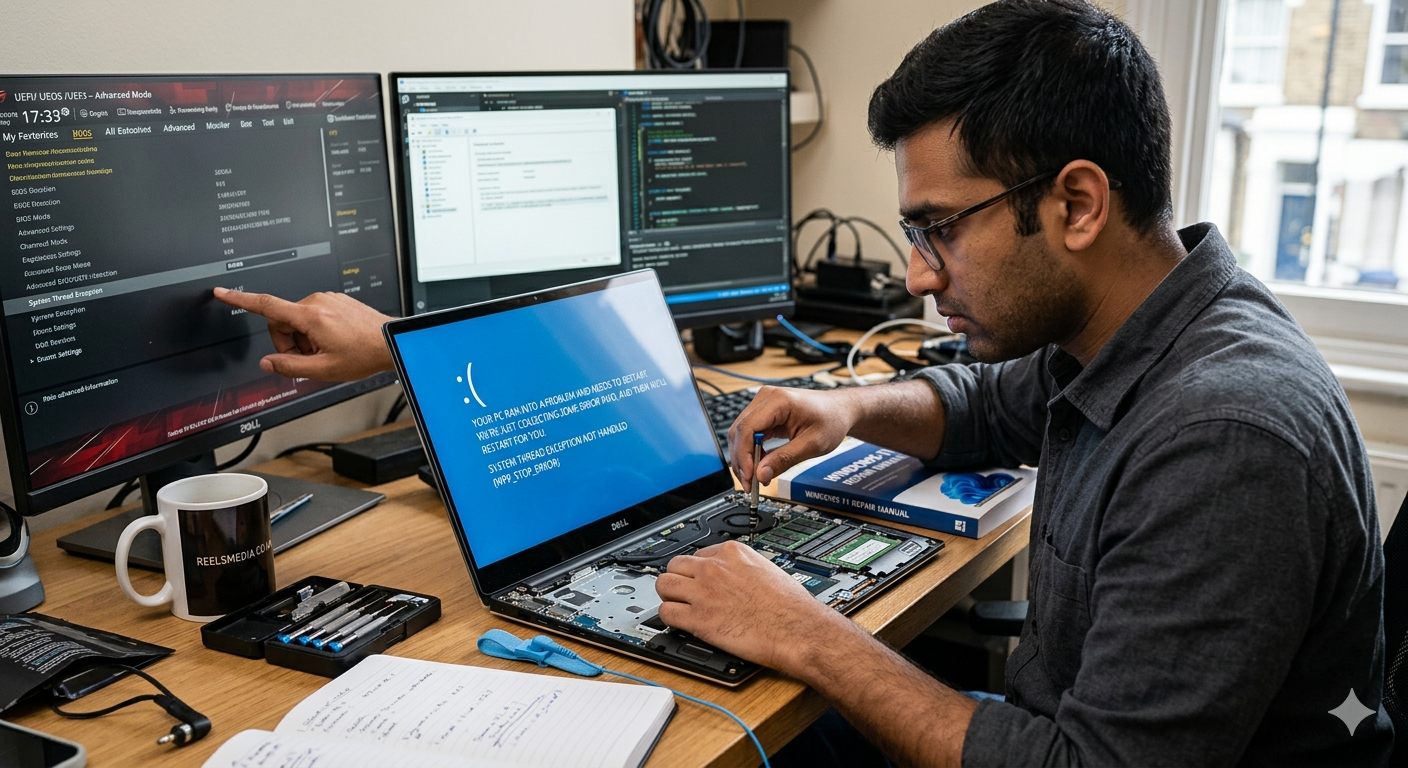
Introduction to System Thread Exception Not Handled error
Encountering the “System Thread Exception Not Handled” error in Windows 11 can be frustrating. It often appears unexpectedly, leaving users staring at a blue screen and wondering what went wrong. This dreaded message typically signifies issues with drivers or system files, but don’t worry; you’re not alone on this journey to fix it.
- Introduction to System Thread Exception Not Handled error
- Possible Causes of the Error in Windows 11
- Troubleshooting Methods:
- – Checking for Updates and Drivers
- – Running System File Checker (SFC) Scan
- – Performing a Clean Boot
- – Using System Restore or Resetting Windows 11
- Other Tips for Avoiding the Error
- Conclusion
- FAQs
Whether you’re a tech novice or an experienced user, understanding this error is crucial for maintaining your system’s health. In this guide, we’ll explore what causes the problem and provide step-by-step troubleshooting methods to help you reclaim control of your device. Say goodbye to those pesky interruptions and get ready to dive into solutions that will have your PC running smoothly again!
Possible Causes of the Error in Windows 11
The “System Thread Exception Not Handled” error in Windows 11 can stem from various sources. One common cause is incompatible or outdated drivers. These components play a critical role in ensuring hardware and software communicate effectively.
Another factor could be corrupted system files. If essential files get damaged, it can disrupt operations and lead to crashes.
Malware infections are also a potential culprit. Malicious software can interfere with system processes, resulting in unexpected errors.
Additionally, recent updates might introduce bugs that conflict with existing applications or settings. Sometimes, new features don’t align well with older systems.
Hardware issues such as failing RAM or overheating components may trigger this error. It’s essential to consider both software and hardware aspects when diagnosing the problem.
Troubleshooting Methods:
When facing the system thread exception not handled error, several troubleshooting methods can help resolve it effectively.



Start by checking for updates and drivers. Keeping your operating system up to date is crucial as it can fix bugs that lead to this issue.
Next, consider running a System File Checker (SFC) scan. This built-in tool scans for corrupted files and repairs them automatically, potentially resolving the error swiftly.
If the problem persists, performing a clean boot may be beneficial. This method allows you to start Windows with minimal programs running, helping identify if background applications are causing conflicts.
Using System Restore is another option worth exploring. It enables you to revert your computer back to a previous state when everything was functioning correctly without losing personal files.
For more severe cases, resetting Windows 11 might be necessary. This process reinstalls the operating system while giving you options on how much data to keep or remove during the reset operation.
– Checking for Updates and Drivers
Keeping your system up to date is crucial for smooth operation. Windows 11 regularly rolls out updates that can fix bugs and improve performance.
Start by checking for Windows updates. Go to Settings, then click on “Windows Update.” Here, you’ll find the option to check for any pending updates. Installing these can resolve many issues, including the dreaded system thread exception not handled error.
Next, focus on drivers. Outdated or incompatible drivers often trigger errors in the operating system. Visit Device Manager to see a list of all installed hardware components. Right-click any device with a yellow triangle icon and select “Update driver.”
You might also want to visit the manufacturer’s website directly for specific hardware, especially graphics cards or network adapters. This proactive approach helps ensure everything works cohesively within your Windows environment.
– Running System File Checker (SFC) Scan
Running the System File Checker (SFC) scan can be a lifesaver when dealing with the system thread exception not handled error. This built-in tool is designed to identify and repair corrupted system files that may be causing issues.
To initiate an SFC scan, open the Command Prompt as an administrator. Simply type “cmd” in the search bar, right-click on it, and select “Run as administrator.”
Once you have the command prompt open, enter “sfc /scannow” and hit Enter. The process will take some time as it thoroughly scans your system files for any discrepancies.
After completing the scan, you’ll receive a message detailing whether any corrupt files were found or repaired. If problems persist after running this scan, further troubleshooting steps may be necessary to resolve deeper issues within Windows 11.
– Performing a Clean Boot
Performing a clean boot is an effective way to troubleshoot the system thread exception not handled error. It helps eliminate software conflicts that might be causing the issue.
To start, open the Run dialog by pressing Windows + R. Type “msconfig” and hit Enter. This will bring up the System Configuration window.
In this window, navigate to the Services tab. Check “Hide all Microsoft services” to ensure you don’t disable essential processes accidentally. Then click on “Disable all.”
Next, head over to the Startup tab and open Task Manager. Here, disable unnecessary startup items one by one.
After making these changes, restart your PC. This clean environment will help pinpoint if a third-party application is responsible for the error you’re experiencing. If everything runs smoothly post-boot, gradually enable services until you identify any problematic software or drivers causing trouble.
– Using System Restore or Resetting Windows 11
If you’re still facing the system thread exception not handled error, consider using System Restore. This feature allows you to revert your computer’s settings to an earlier point in time when everything was functioning well.
To access it, type “System Restore” in the search bar and select “Create a restore point.” From there, click on “System Restore” and follow the prompts. Choose a restore point before the issue started.
If that doesn’t work, resetting Windows 11 might be your next step. Go to Settings and navigate to Update & Security. Click on “Recovery,” then choose “Reset this PC.” You can opt for keeping your files or removing everything entirely.
Both methods can resolve persistent issues but remember they may also cause some data loss if not executed carefully. Always back up important files beforehand!
Other Tips for Avoiding the Error
To reduce the chances of encountering the system thread exception not handled error, consider keeping your Windows 11 environment clean. Regularly uninstall unused applications to minimize conflicts between software.
Utilizing good antivirus software can also help. Malware infections often disrupt system processes, leading to unexpected errors. A thorough scan can detect and eliminate potential threats.
Another effective strategy is maintaining updated drivers for all hardware components. Outdated or incompatible drivers frequently lead to system instability.
Make it a habit to back up your data regularly. This ensures that if issues arise, you won’t lose essential files during troubleshooting or recovery efforts.
Taking these proactive steps can create a more stable computing experience and keep frustrating errors at bay.
Conclusion
Dealing with the “system thread exception not handled” error can be frustrating. However, understanding its root causes and implementing effective solutions helps restore your Windows 11 experience.
By regularly updating drivers and software, you can prevent many issues before they arise. Tools like System File Checker are invaluable for repairing system files that may lead to this error.
Taking proactive steps such as performing clean boots or using System Restore can also provide peace of mind. These methods allow you to troubleshoot without extensive disruptions.
Embracing these practices fosters a smoother computing environment. Keeping your system healthy ensures you’re ready for anything—whether it’s work or play.
Stay vigilant and informed about potential errors to avoid future headaches.
FAQs
What is the System Thread Exception Not Handled error?
The System Thread Exception Not Handled error is a common issue in Windows operating systems, including Windows 11. It typically results in a blue screen of death (BSOD) and can prevent your computer from booting properly.
What causes this error to occur?
This error can be triggered by various factors such as faulty drivers, incompatible software, or corrupted system files. Hardware issues may also contribute to its occurrence.
How can I check for driver updates on my Windows 11 PC?
You can easily check for driver updates through Device Manager. Right-click on the Start button and select Device Manager. From there, expand each category and right-click on any device that needs an update. Choose “Update Driver” and follow the prompts to search automatically for updated driver software.
Is running a System File Checker scan effective in fixing this problem?
Yes, running an SFC scan is often recommended when troubleshooting errors like the System Thread Exception Not Handled. This tool scans for corrupted system files and attempts to repair them automatically.
What does performing a clean boot do?
A clean boot starts Windows with minimal drivers and startup programs. This helps identify if background applications are causing conflicts that lead to errors like the one we’re discussing.
Can I use System Restore if I have no restore points created?
Unfortunately, you need at least one restore point created prior to encountering problems on your system for System Restore to work effectively. If none exist, consider using other methods mentioned earlier.
If these fixes don’t resolve my issue, what should I do next?
If the problem persists even after trying all suggested methods, it might be worth seeking professional help or contacting Microsoft support for further assistance tailored specifically to your situation.