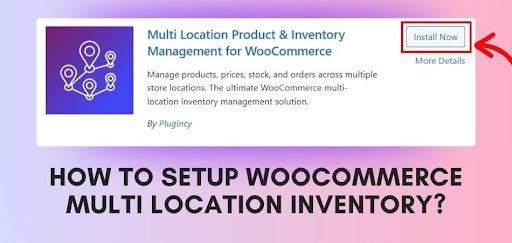
WooCommerce multi-location inventory helps store owners track products across multiple locations with ease. It keeps stock updated, avoids overselling, and improves customer experience. This system supports growth by organizing inventory across warehouses or retail stores. Businesses can manage stock better and make smarter shipping decisions using clear location data.
- Essential Requirements Before Setting Up Multi-Location Inventory
- How to Setup Woocommerce Multi Location Inventory?
- Step 1: Install and Activate the Multi-Location Inventory Plugin
- Step 2: Add Multiple Stock Locations
- Step 3: Assign Products to Each Location
- Step 4: Manage Stock Levels per Location
- Step 5: Add a Location Selector for Customers
- Step 6: Configure Location-Based Shipping Options
- Step 7: Configure Payment Methods Based on Location
- Step 8: Automatically Route Orders to the Correct Warehouse
- Why Your Store Needs Multi-Location Inventory Management?
- Faster Delivery
- Accurate Stock
- Lower Shipping Costs
- Smooth Order Handling
- Better Stock Planning
- Happier Customers
- Common Mistakes to Avoid When Setting Up Multi-Location Stock
- Incorrect Stock Mapping
- Missing Location Updates
- Uneven Stock Distribution
- Wrong Shipping Settings
- Ignoring Staff Permissions
- Best Practices for Managing Multi-Location Inventory in WooCommerce
- Clear Stock Records
- Regular Stock Checks
- Balanced Stock Sharing
- Smart Order Routing
- Organized Team Roles
- Simple Shipping Rules
- Helpful Stock Reports
- Final Thoughts
If you want to learn how to setup WooCommerce multi location inventory, you need the right plugin and follow up with some simple steps.
To set up WooCommerce multi-location inventory, install a plugin like Plugincy’s Multi Location Product & Inventory Management, add your warehouses or store locations, then assign products and stock levels to each location. Enable the location selector and location-based shipping so WooCommerce routes orders to the correct inventory source automatically.
Explore this guide to learn each step in detail and avoid inventory headaches. Follow the tips to streamline your product locations and shipping. Make your store ready for growth with clear, organized stock control.
Essential Requirements Before Setting Up Multi-Location Inventory
Before you set up multi-location inventory, you need a few simple essentials ready. These help your store work smoothly and prevent any setup issues later. Having the basics prepared saves time and avoids mistakes. With the right things in place, the whole process becomes much easier. Here are the essentials you’ll need to set up multi-location inventory:
- WooCommerce Installed: You need a working WooCommerce store because all inventory features depend on it. Make sure it is updated so every tool works correctly.
- Product List Ready: Prepare your products before adding locations to keep everything neat. This makes assigning stock to each place much simpler.
- Location Details: Keep addresses and names of your warehouses or stores ready for quick setup. This helps you add locations without confusion or delays.
- Stable Hosting: A strong hosting plan is important for smooth inventory updates. Slow servers can cause errors during order handling.
- Admin Access: Make sure you have full admin rights in WordPress to change settings. Without access, you cannot manage locations or plugins properly.
- Required Plugin: Install a trusted multi-location inventory plugin to manage stock across all locations easily. This tool allows smooth tracking and smart order routing.
How to Setup Woocommerce Multi Location Inventory?
Before you set up multi-location inventory, it helps to follow clear steps so everything works smoothly. These steps help you avoid confusion and keep your store running without trouble. Each step is simple and easy to follow. You can complete the setup without feeling stressed.
Step 1: Install and Activate the Multi-Location Inventory Plugin
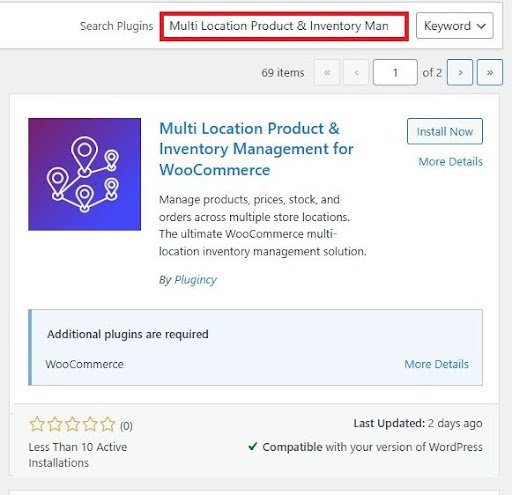
- Install the Free Version: Open your WordPress dashboard and look for the Multi Location Inventory Management for WooCommerce plugin in the search bar now. The install button appears quickly, and you can activate it after the download finishes.
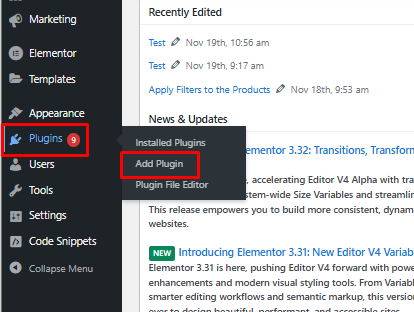
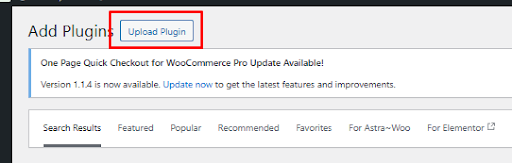
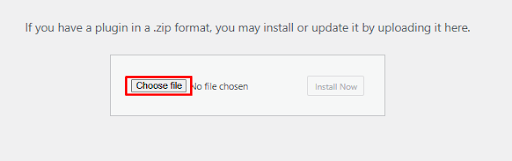
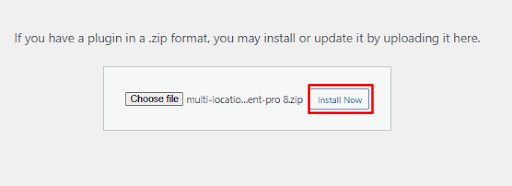
- For Pro Version: Choose the plugin ZIP file inside the upload screen if you have already purchased the pro version from the website. Click install, wait a moment, and activate it from the plugin list.


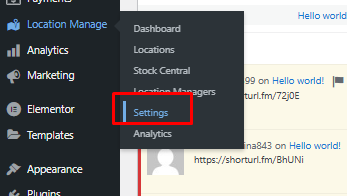
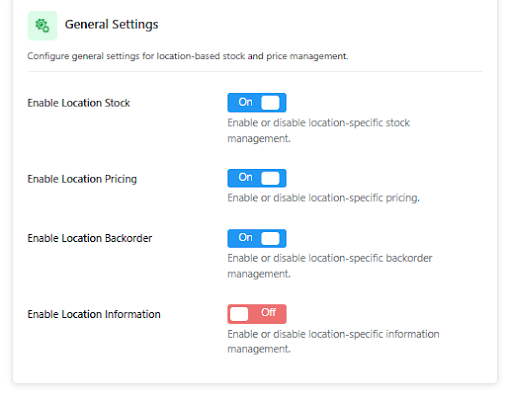
- Check Settings: Look for the new settings menu because it gives you access to important location tools. You can adjust options later, but checking them now saves confusion.


Step 2: Add Multiple Stock Locations
- Create Location: Click the add-location button and type the store or warehouse name inside the form. Add the address carefully so you avoid simple errors later during shipping.
- Add Region: Select the region to help organize your stock across different areas in your country. This helps you plan shipping and order handling without extra stress.
- Assign Roles: Add staff roles for each location because it helps workers manage stock easily. This also keeps your team organized and allows clear work distribution.
Step 3: Assign Products to Each Location
- Product Mapping: Open a product page and scroll to the location section inside the editor window. Select the stores where this item should appear and save your changes carefully.
- Stock Numbers: Add stock numbers for each location because it keeps your inventory clean. You update them anytime, and the system changes stock after every order.
- Variant Setup: Choose variant values if your product uses different sizes or colors for each place. These details help keep accurate stock and prevent wrong orders.
Step 4: Manage Stock Levels per Location
- Stock Update: Change stock amounts when new supplies arrive at any store or warehouse location. This update tells your system exactly how many units exist.
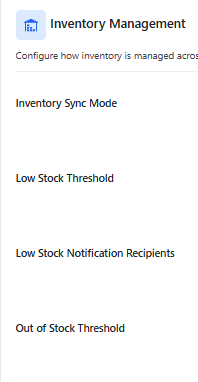
- Low Alerts: Use low-stock alerts to help you track products before they run out suddenly. This gives you enough time to restock without hurting sales.
- Live Tracking: Track stock movement from each order update to keep numbers fresh. Accurate changes support smooth order handling for every product.

Step 5: Add a Location Selector for Customers
- Selector Display: Add the selector box on your product page so customers can choose their store easily. Once chosen, the page adjusts stock details based on location.
- Smart Detect: Allow automatic detection so customers see their closest store without extra clicks. This creates a smoother buying experience and reduces confusion.
- Clear Updates: Show updated stock information on the screen after the customer selects a location. These changes reduce wrong orders and improve trust.
Step 6: Configure Location-Based Shipping Options
- Zone Setup: Create unique shipping zones for each warehouse to control delivery routes. This setup helps you give customers better delivery prices.
- Carrier Choice: Choose carrier options based on each location, since some carriers work better in certain areas. This makes shipping faster and more predictable.
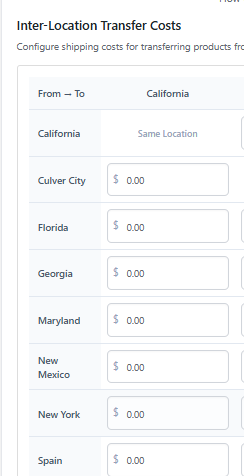
- Cost Adjustments: Change shipping costs according to store distance for more fair pricing. These adjustments build trust because prices feel reasonable.
Step 7: Configure Payment Methods Based on Location
- Payment Limits: Hide payment methods in areas where those services don’t work well. This reduces customer issues and protects your store workflow.
- Regional Methods: Turn on local payment options so customers can pay easily in their region. This improves comfort and increases successful payments naturally.
- Smooth Checkout: Use simple payment settings so the checkout works without errors. Good settings help customers finish orders quickly and confidently.

Step 8: Automatically Route Orders to the Correct Warehouse
- Smart Routing: Send orders to the closest warehouse for faster delivery and easier handling. This keeps your delivery times short and predictable.
- Stock Check: Route orders to stores that have enough stock to complete them. This keeps customers happy and avoids sudden order cancellations.
- Address Match: Match customer addresses to store locations to find the fastest option. This keeps shipping simple while giving customers smoother experiences.
Why Your Store Needs Multi-Location Inventory Management?
Running a store with products in different places can feel confusing at first, especially when orders come in fast. You might worry about where the stock is kept or how quickly you can ship items. When everything is scattered, mistakes can happen without you even noticing. Here are why your store needs multi-location inventory management:



Faster Delivery
When your products are stored in different locations, you can send orders from the place closest to the customer. This helps reduce long shipping times and keeps buyers happy. People love getting their orders quickly, and they often return to stores that deliver fast. With better location planning, you can avoid delays and keep your store running smoothly even during busy seasons. Having multiple stock points also gives you more flexibility when one place runs out.
Accurate Stock
Keeping your stock in one huge list can make things confusing when you have more than one store or warehouse. Multi-location inventory lets you track exactly how many items you have in each place. This reduces the chances of selling something that’s already out of stock. It also helps you plan restocking more easily. Knowing the true stock in every location keeps your store organized and prevents unhappy customers who expect their orders to be fulfilled on time.
Lower Shipping Costs
Shipping from a single faraway warehouse often leads to higher costs. But when you send products from the nearest location, shipping becomes cheaper for you and your customers. Saving money on delivery means you can offer better prices or free shipping deals. Customers appreciate lower costs, and this can help increase your sales. Spending less on shipping also allows you to use those savings for other parts of your business that need attention.
Smooth Order Handling
Sometimes orders come from many different places, and managing them manually can be stressful. Multi-location inventory helps your system choose the best location automatically, so you don’t have to guess. This makes your order process smoother and more reliable. It also reduces errors caused by manual sorting or checking. With a much clearer workflow, managing more orders at the same time becomes easier and less overwhelming.
Better Stock Planning
When you know exactly which location sells faster, you can send more products there before stock runs out. This helps you avoid delays and ensures customers always find what they want. It also prevents one store from overstocking while another stays empty. Multi Location Inventory Management for WooCommerce can support this by giving you useful insights about each location. These insights help you plan your stock movement smartly and reduce waste or missing items.
Happier Customers
Customers feel more confident when they see items available in their area. It reduces their fear of delays or canceled orders. Showing stock by location builds trust because it feels more accurate and transparent. When customers can pick the nearest store or choose faster delivery, they feel in control of their shopping experience. The better the experience you provide, the more likely they are to return and recommend your store to others.
Common Mistakes to Avoid When Setting Up Multi-Location Stock
Setting up multi-location stock looks simple, but small mistakes can create bigger problems later. You can avoid most issues when you understand what usually goes wrong. These points help you stay organized and reduce stress. Use them to keep your entire stock system running smoothly every day.
Incorrect Stock Mapping
Many store owners choose wrong locations for products because they rush through basic settings quickly. This creates confusion when orders reach the wrong store and delay the customer. Stay calm and double-check every product location for cleaner and safer inventory control.
Missing Location Updates
Some people forget to update the new store or warehouse details after adding them in a hurry. This small mistake brings unclear stock numbers and weak order flow. Add updates slowly and keep every location detail correct to avoid sudden store problems.
Uneven Stock Distribution
A store runs into trouble when one location holds too much stock while others stay nearly empty. This uneven setup confuses customers and slows delivery times. Watch your numbers closely and spread products across locations in a steady and simple way.
Wrong Shipping Settings
Stores often set incorrect shipping rules that do not match location details or delivery needs. These mistakes raise shipping problems and upset customers quickly. Review your settings slowly and choose fair delivery rules that support each store correctly.
Ignoring Staff Permissions
Some owners give every team member full access without thinking about daily responsibilities or safety. This creates mix-ups because workers change stock in the wrong places. Give each person the right access so your overall system stays neat and easy.
Best Practices for Managing Multi-Location Inventory in WooCommerce
Managing stock in different places can feel tricky when the store gets bigger and busier every day. You might wonder how to keep everything in order without losing track of items. It becomes easier when you follow clear steps that keep things simple. These practices help your store grow without giving you extra stress or confusion.
Clear Stock Records
Keeping neat and updated stock records helps you understand what is happening in every location. When your records stay clean, you avoid selling items that are not available. This also helps your team stay calm because they can trust the numbers they see. If a location sells faster, you can spot it early and restock quickly. Good records also reduce mistakes that often cause customer complaints and lost sales.
Regular Stock Checks
Checking stock often helps you find small problems before they grow into bigger ones. Some products might move more slowly in one place while selling fast in another, and regular checks make that easier to see. It also helps you notice damaged or missing items earlier. When you stay updated, you can shift products between locations without trouble. Regular checks keep your store running smoothly and help you plan better.
Balanced Stock Sharing
Spreading your products across locations evenly helps you avoid empty shelves in busy areas. Some stores may run out faster than others, so you must watch the numbers closely. When stock is balanced, customers can always find the products they want. This also reduces pressure on a single warehouse. Balanced sharing makes your entire system stable and easier to handle daily.
Smart Order Routing
Sending orders to the nearest or most prepared location helps deliver items faster. When orders go to the wrong place, delays and confusion happen quickly. Smart routing keeps your team organized by giving each store the right tasks. It also helps customers get their packages sooner. With the right settings, you can make sure every order moves in a steady and simple way.
Organized Team Roles
Giving each team member clear roles helps avoid mistakes in different locations. When someone changes stock in the wrong place, it creates confusion for everyone. Roles make responsibilities easy to understand and keep the workflow steady. It also helps new staff learn faster because they know what they must do. Organized roles help you keep every location under control.
Simple Shipping Rules
Creating simple shipping rules for each location keeps customers informed and confident. When every location has its own rates and methods, shipping becomes easier to manage. Clear rules stop delivery mix-ups and reduce customer complaints. This also helps your store offer fair prices based on distance. Simple rules make your shipping system smoother and more predictable.
Helpful Stock Reports
Reports show you which products sell fast and which ones stay longer in certain places. These reports help you make smart choices without guessing. When you understand the sales pattern, you can restock earlier and avoid running out. Reports also show whether a location needs more support. Good reporting helps you understand your store better and plan ahead with fewer mistakes.
Final Thoughts
Managing inventory across different locations doesn’t have to be complicated or stressful. With the right tools and setup, your store can run faster, stay more organized, and keep customers happy without extra effort. If you’re wondering how to setup WooCommerce multi location inventory without all the headaches, the best way is to use tools that are built to make things easier.
That’s where the Multi Location Product & Inventory Management for WooCommerce plugin really shines—it simplifies everything from stock control to shipping and order handling. Try it out today and take the first step toward a smarter, smoother WooCommerce store.