Adopting any new AI tool can feel like you’re learning a new language, especially when it comes to visuals. The good news: with the right workflow, you don’t need editing skills, a fancy computer, or a big budget to turn simple photos into engaging videos.
- Why Beginners Feel Overwhelmed by Image to Video AI
- Common Mistakes Beginners Make with Image to Video AI (and How to Fix Them)
- Mistake 1 – Writing Vague or Overloaded Prompts
- Mistake 2 – Expecting Full-Length Videos from One Image
- Mistake 3 – Ignoring the Original Image Quality
- Mistake 4 – Not Reusing and Repurposing Generated Clips
- Fewer Tools, More Output
- Fast Turnaround for Campaigns and Experiments
- A Simple Starter Workflow You Can Try Today
Below, we’ll walk through why Image to Video AI often feels confusing at first, how to get started in four simple steps, what mistakes to avoid, and how creators, freelancers, and small businesses can use image to video workflows for fast, cost-effective content creation.
Why Beginners Feel Overwhelmed by Image to Video AI
Before you blame yourself for “not being techy,” it helps to understand what’s actually causing the friction.
Too Many Options, Not Enough Guidance
Most beginners don’t struggle because the tools are bad. They struggle because:
- There are too many settings, modes, and sliders in traditional editing tools.
- AI terms like “model,” “render,” or “prompt” sound more like coding than creativity.
- Tutorials often assume you already know video basics.
So when someone opens an Image to Video AI platform for the first time, they see:
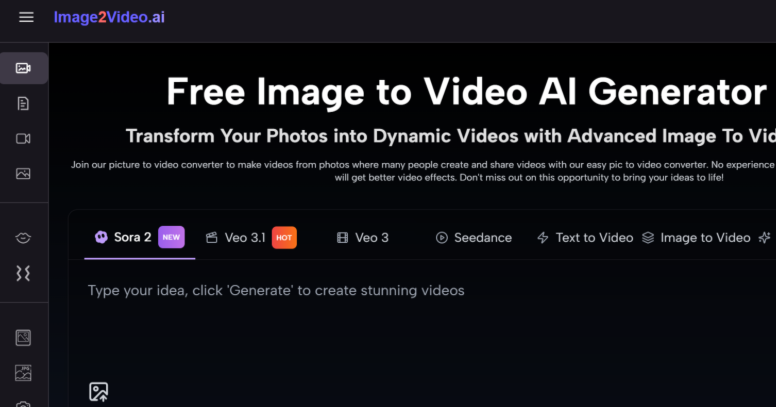
- Upload buttons
- Text boxes for prompts
- Previews, timelines, download options
And no clear answer to: “What do I do first to get something usable?”
Perfectionism Kills Momentum
Another trap: people expect studio-level results on their first try.
Common beginner thoughts:



- “If it doesn’t look like a commercial, this isn’t worth posting.”
- “I need the perfect prompt before I click generate.”
In reality, Image to Video AI works best when you:
- Start with simple prompts
- Treat early attempts as tests, not final products
- Improve through iteration, not overthinking
When I first started using photo to video tools, my earliest clips were 5–10 seconds experiments. None of them were “portfolio-ready,” but they gave me a feel for what the AI understood and what it ignored. That learning curve paid off very quickly.
How Image to Video AI Works in Simple Terms
You don’t need to understand the math behind AI, but a basic mental model helps you use it better.
From Static Photo to Moving Video
With an Image to Video AI generator, you’re doing three things:
- Uploading a photo (JPEG, PNG, or JPG)
- Describing what you want to see in natural language
- Letting the AI animate the image into a short MP4 video
The system:
- Detects what’s in your image (people, objects, background, depth)
- Applies motion, transitions, and intelligent zooms
- Generates a short photo to video clip (for example, ~5 seconds) that feels alive instead of static
You don’t need to handle timelines, keyframes, or complex transitions manually. The heavy lifting stays behind the scenes.
Common Mistakes Beginners Make with Image to Video AI (and How to Fix Them)
You can save a lot of time by dodging these early pitfalls.
Mistake 1 – Writing Vague or Overloaded Prompts
Prompts like:
- “Make this look cool”
- “Add lots of effects”
don’t give the Image to Video AI much to work with. On the flip side, 8-line prompts packed with conflicting instructions confuse the system too.
How to fix it:
- Aim for specific, short prompts
- Focus on one primary motion and one mood
Example adjustment:
- Instead of: “Make this product image into a super dynamic, fast, exciting, modern, flashy ad with cool transitions and every effect possible”
- Try: “Slow zoom toward the product with a clean, modern style and subtle glow around the bottle for an Instagram story ad.”
Mistake 2 – Expecting Full-Length Videos from One Image
A single photo to video transformation is usually ideal for:
- Short clips (around a few seconds)
- Hooks, intros, outros
- Social snippets or ad variations
Trying to turn one photo into a full 3-minute video is like trying to write a novel from a caption.
Better approach:
- Create multiple short image to video clips
- Stitch them together in a simple editor if needed
- Use them as scenes, not the entire production
Mistake 3 – Ignoring the Original Image Quality
AI can enhance, but it can’t fix everything.
Problems you’ll see with weak source images:
- Awkward motion on low-resolution photos
- Strange artifacts around cluttered backgrounds
- Less impressive animation on heavily compressed images
Actionable tip:
- Use the highest quality version of your photo available
- Avoid tiny screenshots or images with heavy text clutter
- For product showcases, go for clean, well-lit shots on a simple background
Mistake 4 – Not Reusing and Repurposing Generated Clips
A lot of beginners generate a clip, post it once, and move on. That’s leaving value on the table.
From one image to video output, you can:
- Crop it vertically for Reels/TikTok
- Use frames as thumbnails
- Turn the animation into a looping background for a landing page
- Combine several clips for a longer social ad
When I first incorporated Image to Video AI into my workflow, I’d generate one clip for a client product, then repurpose it into an email header, a social teaser, and a shortened version for ad testing. That single clip often pulled its weight across an entire week of content.
Why Image to Video AI Is So Cost-Effective for Beginners
You don’t need to be a professional editor to see the cost and time advantages.
Fewer Tools, More Output
Traditionally, to turn photos into videos you’d need:
- Editing software (often paid)
- Time to learn timelines, keyframes, transitions
- Possibly a designer or editor if you’re too busy
With Image to Video AI:
- It’s web-based (no software installation)
- Works in a browser on desktop or smartphone
- Handles photo to video conversion automatically
That means:
- Less time learning tools
- More time publishing content
- No upfront spend on pro-level editing software
Fast Turnaround for Campaigns and Experiments
If you test ideas frequently—hooks, angles, messaging—Image to Video AI helps you:
- Turn a single concept into multiple video variations
- Iterate quickly by changing prompts, not rebuilding timelines
- Scale production without scaling your budget
A simple cost-saving pattern:
| Scenario | Old Way | With Image to Video AI |
| Product teaser videos | Hire editor or agency | Upload product photo + short prompt |
| Social media promos | Shoot custom video footage | Reuse existing images as animated clips |
| Educational explainer snippets | Record and edit screen or talking head | Animate diagrams and static assets |
Over time, this workflow lets small teams behave like bigger content operations, just by using their existing photo library.
A Simple Starter Workflow You Can Try Today
To wrap this up, here’s a no-stress, beginner-friendly playbook for your first image to video project:
- Pick 1–3 of your best photos (product, portrait, landscape, or infographic).
- Upload one image to an online Image to Video AI platform.
- Write a simple prompt with subject + motion + mood + purpose.
- Generate a 5-second clip and note what you like or don’t like.
- Tweak your prompt once (don’t overthink it) and regenerate.
- Download the version you prefer and post it on one platform.
- Repurpose that same clip in at least one more place (story, reel, ad, email header, or YouTube intro).
If you repeat that process a few times, you’ll move from “AI feels overwhelming” to “this is just part of my normal content workflow.” And that’s the real power of Image to Video AI for beginners: not magic, just efficient, repeatable creation that fits into your existing routine.