3D printing has rapidly evolved, and choosing the right slicer software is essential for achieving high-quality prints. Orca Slicer is a modern and advanced 3D printing slicer designed to meet the needs of both beginners and professional users. Known for its speed, accuracy, and customization options, Orca Slicer has become a popular choice among FDM 3D printer users.
- What is Orca Slicer?
- System Requirements for Orca Slicer
- How to Download Orca Slicer
- How to Install Orca Slicer on Windows
- How to Install Orca Slicer on macOS
- How to Install Orca Slicer on Linux
- First-Time Setup and Configuration
- Key Features of Orca Slicer
- Common Issues and Troubleshooting
- Conclusion
- Frequently Asked Questions (FAQs) – Orca Slicer 3D Printer
This article provides a complete and detailed guide on how to install Orca Slicer on Windows, macOS, and Linux, along with setup instructions and troubleshooting tips.
What is Orca Slicer?
Orca Slicer is an open-source 3D printer slicing software based on Bambu Studio and PrusaSlicer. It converts 3D models (STL, OBJ, or 3MF files) into G-code, which is required by 3D printers to create physical objects layer by layer.
Unlike many traditional slicers, Orca Slicer focuses on high-speed printing, better flow control, and improved print consistency. It supports a wide range of popular 3D printers, including Creality, Ender, Anycubic, Bambu Lab, and many others.
System Requirements for Orca Slicer
Before installing Orca Slicer, ensure that your system meets the recommended requirements. A compatible system ensures smooth performance and faster slicing.
Orca Slicer works on Windows 10 and 11, macOS, and Linux operating systems. At least 8GB of RAM is recommended for handling large or complex 3D models. A dedicated or updated graphics driver is also important for proper 3D preview rendering. Additionally, a stable internet connection is required for downloading updates and printer profiles.
How to Download Orca Slicer
To download Orca Slicer safely, always use official or trusted sources. Open your web browser and search for “Orca Slicer official website”. The software is mainly hosted on GitHub, where the latest stable releases are published.
Once on the official page, choose the version that matches your operating system. Windows users should download the .exe file, macOS users should select the .dmg file, and Linux users can download the .AppImage file. After downloading, save the file in an easily accessible folder.



How to Install Orca Slicer on Windows
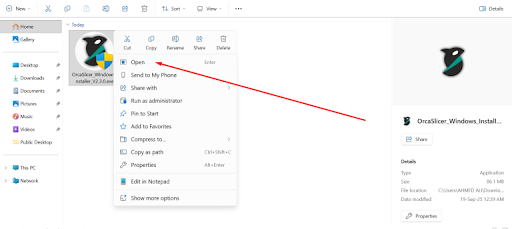
Installing Orca Slicer on Windows is straightforward. First, locate the downloaded .exe file and double-click it. If Windows displays a security prompt, click Run to continue. The installation wizard will open and guide you through the process.
Accept the license agreement and choose the installation directory if you want to change the default location. Click the Install button and wait for the installation to complete. Once finished, click Finish and launch Orca Slicer from the desktop shortcut or Start Menu.
How to Install Orca Slicer on macOS
For macOS users, installation begins by opening the downloaded .dmg file. A window will appear showing the Orca Slicer icon and the Applications folder. Drag the Orca Slicer icon into the Applications folder to install it.
After installation, open the Applications folder and launch Orca Slicer. If macOS blocks the app due to security restrictions, go to System Settings → Privacy & Security and click Allow Anyway. Once allowed, Orca Slicer will run normally.
How to Install Orca Slicer on Linux
Linux users can install Orca Slicer using the AppImage format. After downloading the file, right-click it and enable Allow executing file as a program, or use the terminal command:
chmod +x OrcaSlicer.AppImage
Once the file is executable, double-click it to launch Orca Slicer. No additional installation steps are required, making it a convenient option for Linux systems.
First-Time Setup and Configuration
When Orca Slicer is launched for the first time, it will ask you to configure your 3D printer. Select your printer brand and model from the list. If your printer is not listed, you can manually add a custom printer profile.
Next, choose your nozzle size, filament type (PLA, ABS, PETG, etc.), and basic print quality settings. Orca Slicer provides pre-configured profiles that work well for most users, especially beginners. After completing the setup, save your profile to start slicing models.
Key Features of Orca Slicer
Orca Slicer offers a wide range of advanced features that improve print quality and efficiency. These include fast and accurate slicing algorithms, advanced infill patterns, customizable supports, and improved flow calibration. The software also provides detailed print previews, allowing users to analyze layers before printing.
Additionally, Orca Slicer supports multi-material printing, custom G-code, and high-speed printing profiles, making it suitable for professional and industrial applications.
Common Issues and Troubleshooting
Some users may experience issues such as Orca Slicer not opening or printers not being detected. In most cases, updating your graphics drivers or installing the latest version of the software resolves startup problems. If your printer is not detected, check your USB or network connection and ensure the correct printer profile is selected.
Conclusion
Orca Slicer is a powerful, reliable, and free 3D printing slicer software that delivers excellent results for both beginners and advanced users. By following this detailed installation guide, you can easily install Orca Slicer on your system and configure it for high-quality 3D printing. Whether you are printing simple models or complex designs, Orca Slicer provides the tools needed for consistent and professional results.
Frequently Asked Questions (FAQs) – Orca Slicer 3D Printer
1. What is Orca Slicer used for?
Orca Slicer is a 3D printing slicer software used to convert 3D models (such as STL, OBJ, or 3MF files) into G-code. This G-code tells a 3D printer how to print an object layer by layer. Orca Slicer is mainly used for FDM 3D printers and is known for high-speed and high-quality slicing.
2. Is Orca Slicer free to use?
Yes, Orca Slicer is completely free and open-source. Users can download, install, and use all features without any subscription or license fee.
3. Which operating systems support Orca Slicer?
Orca Slicer supports:
- Windows 10 and Windows 11
- macOS
- Linux
Each operating system has its own installation file, such as .exe for Windows, .dmg for macOS, and .AppImage for Linux.
4. Which 3D printers are compatible with Orca Slicer?
Orca Slicer is compatible with many popular 3D printers, including:
- Creality (Ender series, CR series)
- Anycubic
- Bambu Lab
- Prusa
- Custom and DIY FDM printers
Users can also manually create custom printer profiles if their printer is not listed.
5. Is Orca Slicer good for beginners?
Yes, Orca Slicer is beginner-friendly. It offers pre-configured printer and filament profiles that work well out of the box. At the same time, advanced users can access detailed settings for fine-tuning print quality.