
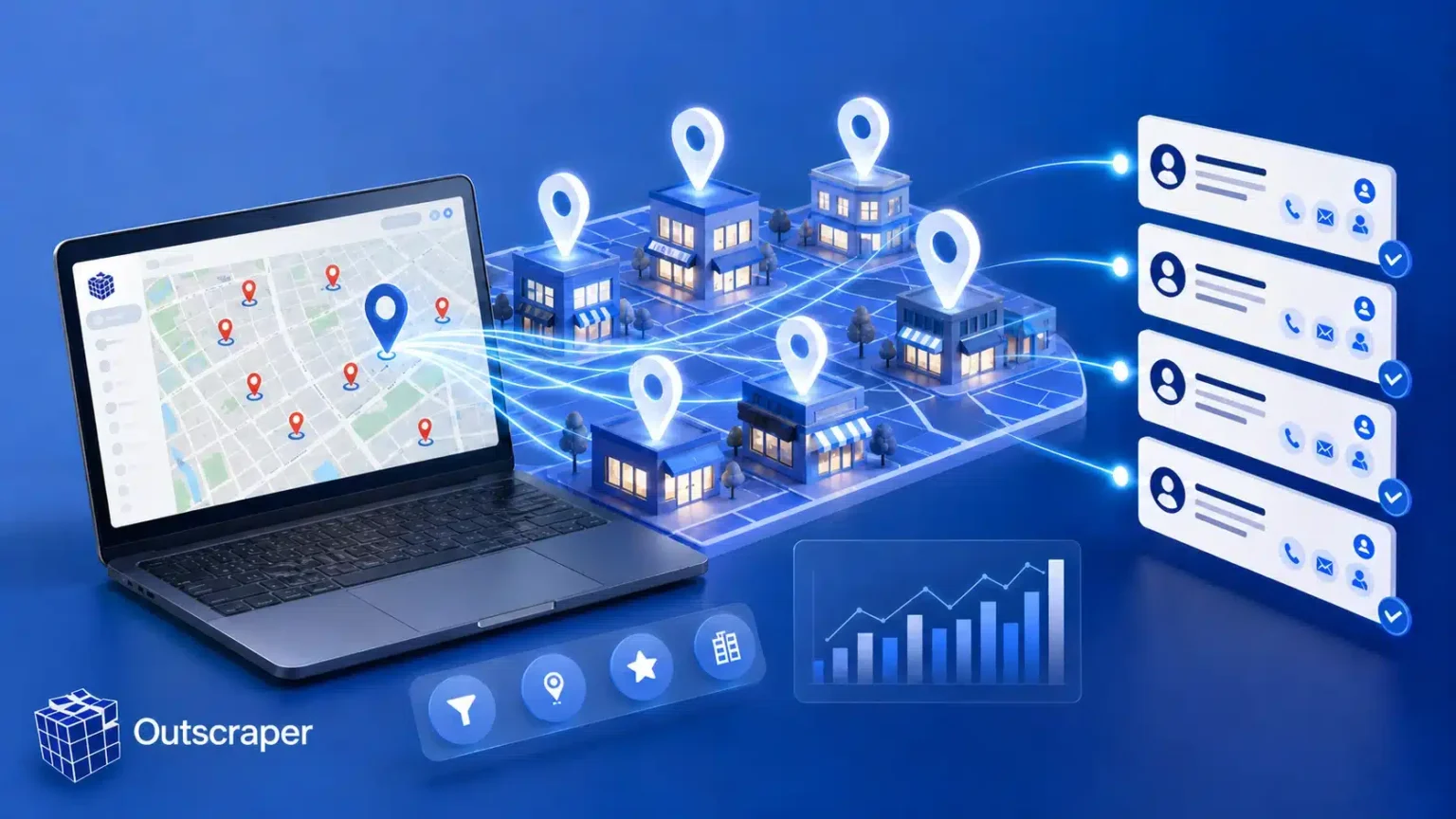
Business data from Outscraper helps you avoid that. You can pull local business details from Google Maps, narrow them by category, location, and rating, and export a list that’s ready to use.
- Stop Chasing Random Leads: Why Targeted Lists Win
- What Business Data from Outscraper Gives You
- Step 1: Define Your Ideal Local Customer
- Step 2: Pick the Right Category and Location
- Step 3: Use Filters to Cut the Noise
- Step 4: Add Emails and Social Links
- Step 5: Spot Hot Leads with Smart Columns
- Step 6: Clean, Segment and Export Your List
- Who Gets the Most from Local Lead Lists?
- Outscraper Pricing: Build Your First List for Free
- Build Lists the Right Way: Privacy and Outreach Rules
- Final Thoughts: Turn Raw Data into Real Conversations
- FAQs
In this guide, you’ll learn how to build a targeted local lead list step by step, from choosing a niche to loading leads into your CRM.
Stop Chasing Random Leads: Why Targeted Lists Win
A generic list treats every business the same. A dentist, a gym, and a car repair shop get the same pitch. The result is low reply rates and a lot of wasted time.
A targeted list works differently. You pick one niche and one location, then reach out with a message that fits.
Local businesses are a good fit for this. They’re easy to find, they have clear categories, and many of them need help with marketing, websites, or reviews.
What Business Data from Outscraper Gives You
Outscraper is a cloud-based platform that collects publicly listed business information from Google Maps. Its Google Maps Scraper turns that information into a file you can sort, filter, and use.
The data typically includes:
- Core details:business name, phone number, website, and address
- Reputation data:rating and review count
- Business info:category, working hours, and business status
- Contact extras:emails and social links (with enrichment)
This gives you more than a phone book. You get signals that help you decide who is worth contacting first.



Step 1: Define Your Ideal Local Customer
Before you scrape anything, decide who you want to reach. A clear picture saves you from a messy list later.
Ask yourself three questions:
- Which niche do I serve? (dentists, gyms, restaurants)
- Which city or region am I targeting?
- What makes a business a good lead? (for example, a rating of 4.0 or higher)
A good example: “Dentists in Austin with at least 4 stars.” Start with one niche and one location. You can always expand later.
Step 2: Pick the Right Category and Location
Specific searches give cleaner results. “Pediatric dentists in Austin” is far better than “doctors in Texas.”
In the Outscraper Google Maps Scraper, you choose a category and a location, such as a city, region, or country. Broad searches pull in many businesses you don’t need, and that adds cleanup work.
Keep your first search small. It’s the quickest way to check data quality before you scale up.
Step 3: Use Filters to Cut the Noise
Filters are where a raw export becomes a real lead list. Outscraper lets you set advanced parameters before you run the job.
For example, you can keep only businesses that have a phone number or a website listed. That removes dead ends right away.
Rating and review count help too. A business with a 4.8 rating and 500 reviews is established. A business with 3.2 stars and 12 reviews might need help with its reputation. Which one is your lead depends on what you sell.
Step 4: Add Emails and Social Links
A phone number is useful, but many people prefer to start with email. That’s where enrichment comes in.
Outscraper’s Emails & Contacts option scans each business website. It can add email addresses and links to social profiles such as Facebook, Instagram, and LinkedIn.
One honest note: not every business will have an email on its website. Expect some blank cells, and plan your outreach around that. Phone and social links can fill the gaps.
Step 5: Spot Hot Leads with Smart Columns
This is the step most people skip. Your export holds more than contact details. Read the columns like clues.
Here’s how different columns can point to different opportunities:
- Low rating or few reviews:the business may need reputation or review management help.
- Unclaimed or unverified listing:a good opening for Google Business Profile services.
- Website platform (for example, WordPress):useful for web design and SEO agencies.
- Tracking tools on the website:suggests the business already invests in ads or analytics.
Available fields can vary, so check what your export includes. Then match each signal to the service you offer.
A freelance SEO, for example, might sort by rating and website platform. An agency selling ads might look for businesses that already run tracking tools.
Step 6: Clean, Segment and Export Your List
Even good data needs a quick cleanup before you use it.
- Remove duplicates and empty rows.
- Split the list into groups, such as by area, rating, or category.
- Mark the leads you’ll contact first.
When the list is ready, export it as CSV, Excel, JSON, or Parquet. Need it inside your sales tools? Outscraper also connects with Zapier and HubSpot, so you can send leads straight to your CRM.
Developers can pull the same data through the API if they want to automate the process.
Who Gets the Most from Local Lead Lists?
Anyone who sells to local businesses can use this workflow. It works especially well for:
- SEO and marketing agencieslooking for clients who need visibility
- Web design freelancerstargeting outdated or missing websites
- B2B sales teamsbuilding regional prospect lists
- Local service providersresearching nearby competitors and partners
- Researchers and app builderswho need structured business data
Outscraper Pricing: Build Your First List for Free
Pricing is pay-as-you-go. There’s no monthly fee, so you pay only for the records you extract.
| Tier | Usage | Price |
| Free | First 500 businesses | $0 |
| Starter | 501 to 100,000 businesses | $3 per 1,000 records |
| Business | After 100,000 businesses | $1 per 1,000 records |
The free tier is enough to build and test a first list. Prices can change, so check the official pricing page before you commit.
Build Lists the Right Way: Privacy and Outreach Rules
Outscraper works with publicly available business information. Still, how you use the data is your responsibility.
Follow the privacy and data protection rules where you and your leads are based, such as GDPR in Europe. Keep your outreach relevant, honest, and respectful. Don’t send the same message to thousands of people.
If you’re unsure about a specific use case, speak with a legal professional. Rules vary by country.
Final Thoughts: Turn Raw Data into Real Conversations
A great lead list isn’t about size. It’s about fit. When you combine a clear niche, smart filters, and a few useful signals, you reach the right people with the right message.
Business data from Outscraper gives you the raw material. Your strategy turns it into conversations and clients.
Ready to try it? Build your first list with 500 free records on the Outscraper Google Maps Scraper page.
FAQs
- How do I build a local lead list with Outscraper?Choose a category and location, set your filters, turn on enrichment if you need emails, then run the job and export the results.
- Can I get emails for my leads from Outscraper?Yes, with the Emails & Contacts enrichment. Keep in mind that not every business publishes an email on its website, so some results may be blank.
- Can I filter leads by rating or phone number?Yes. Advanced filters let you keep businesses with a phone number or website, and the rating and review columns help you sort and prioritize.
- Can I send Outscraper data to my CRM?Yes. You can export a file and import it, or connect through Zapier or HubSpot.
- Is Outscraper free to try for lead generation?Your first 500 businesses are free. After that, pricing is pay-as-you-go.